
How to Add a Volume Indicator on the Ironbeam Platform
Last updated November 17, 2026
On the Ironbeam platform the volume indicator is called BarVolume. Click Indicators on the chart, click + ADD, type volume in the Formula search box, and select BarVolume. Click the settings gear next to BarVolume, open the Display tab, change the chart type from Line to Histogram, and click SAVE.
The volume indicator on the Ironbeam platform is called BarVolume. Ironbeam describes it as the total traded volume of each bar for a symbol, which is the sum of the quantity traded during the bar. You add it from the chart’s Indicators panel, then set it to display as a histogram so it appears as volume bars in a separate panel under the price chart.
How do you add BarVolume to a chart?
- Open Indicators on the chart. Click Indicators at the top right of the Charts widget.
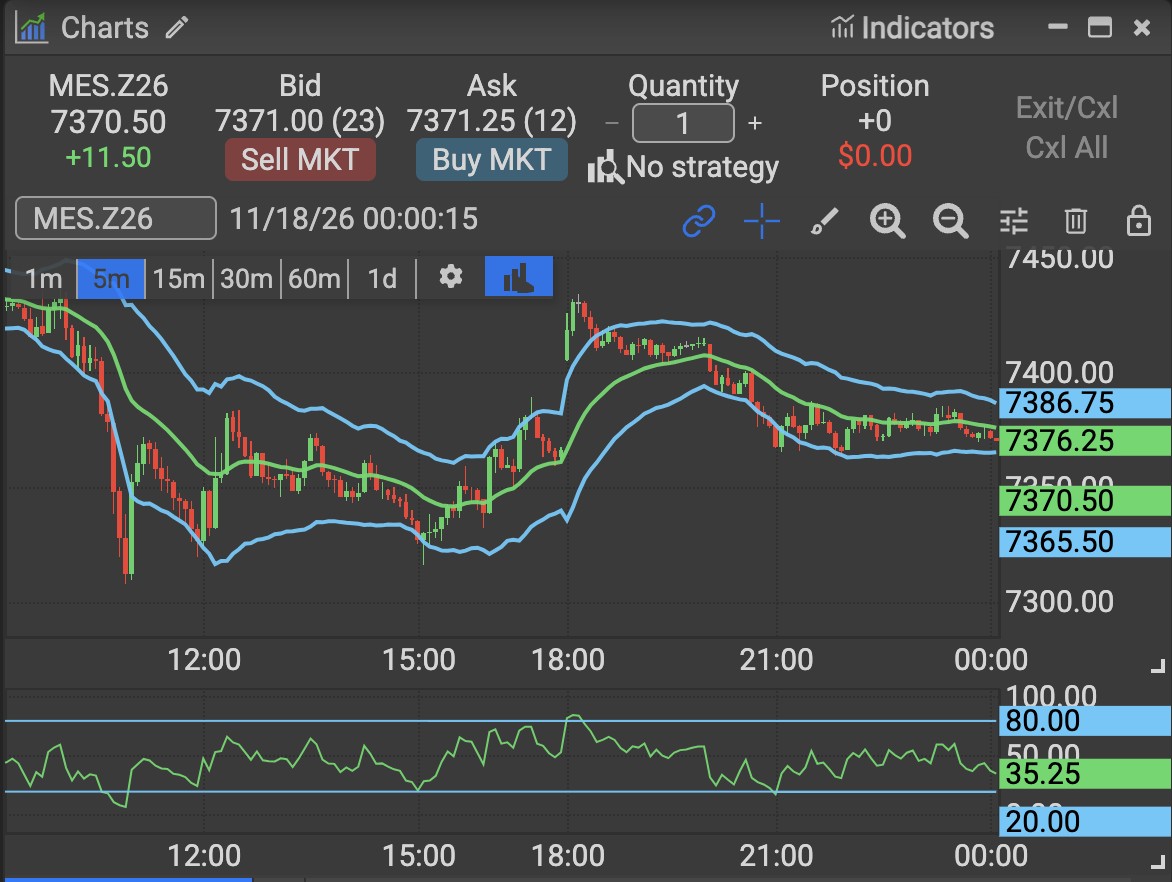
A Charts widget. The Indicators button is at the top right of the chart panel. - Click + ADD. In the Indicators panel, click + ADD next to Indicators. The Formula picker opens.
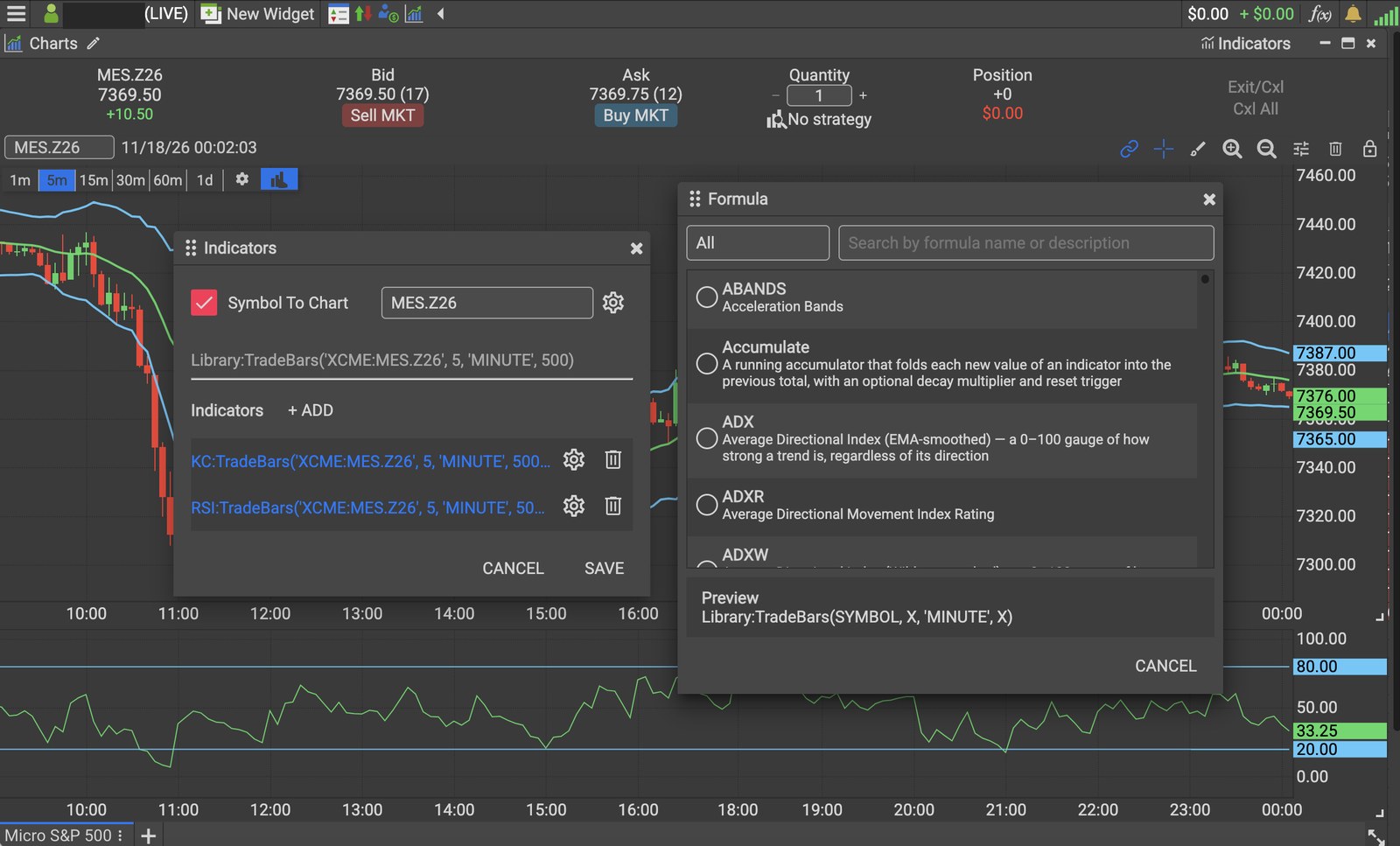
The Indicators panel with + ADD, and the Formula picker that opens after you click + ADD. Screenshot of the Ironbeam platform. Account number hidden. - Search for volume. Type volume in the Search by formula name or description box.
- Select BarVolume. Choose BarVolume, the third option in the results.
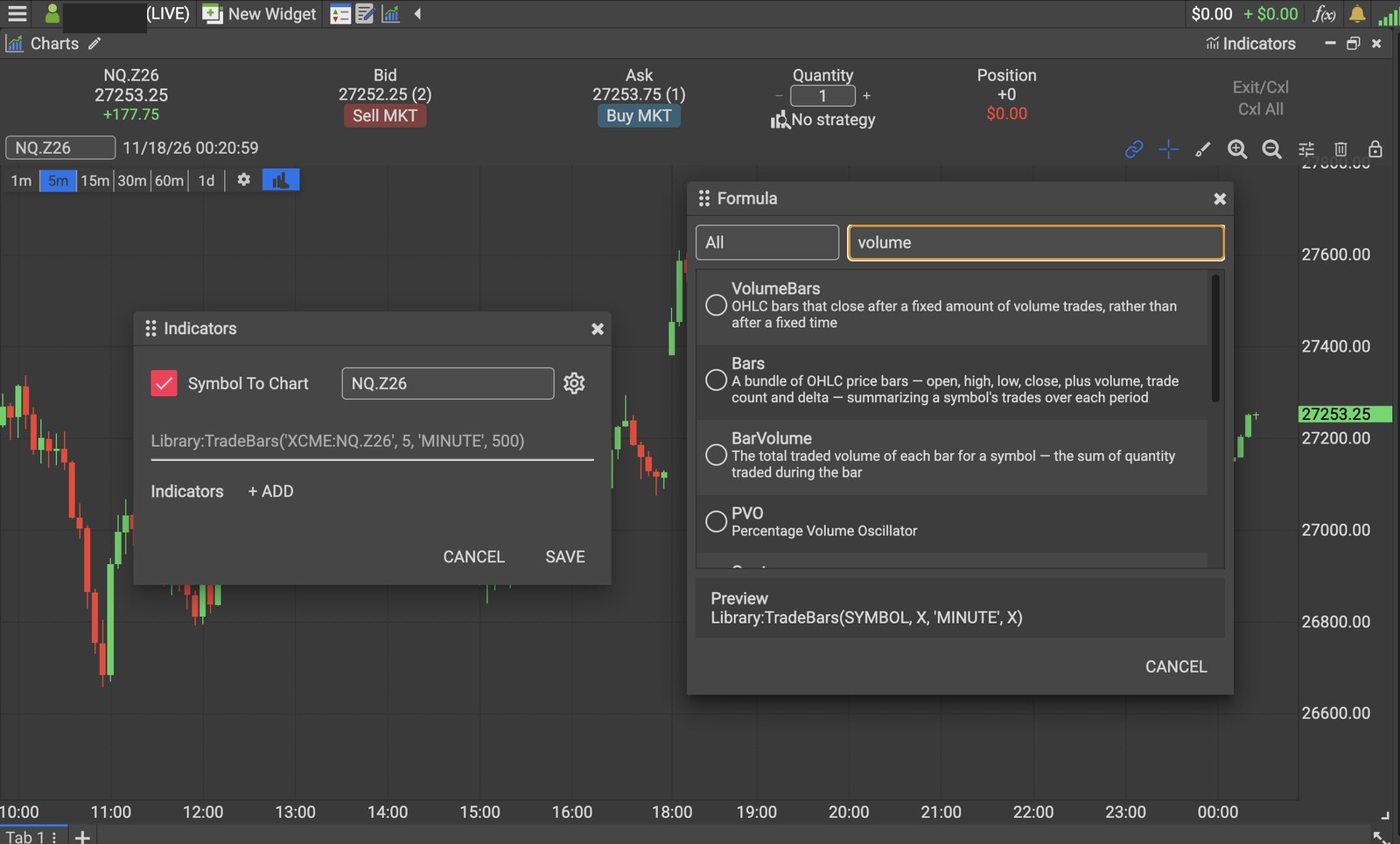
Type volume in the Formula search box and select BarVolume, the third result. Screenshot of the Ironbeam platform. Account number hidden. - Open the BarVolume settings. In the Indicators panel, click the settings gear next to the BarVolume entry.
- Open the Display tab. In the Formula settings, open the Display tab.
- Change the chart type to Histogram. Change the chart type from Line to Histogram.
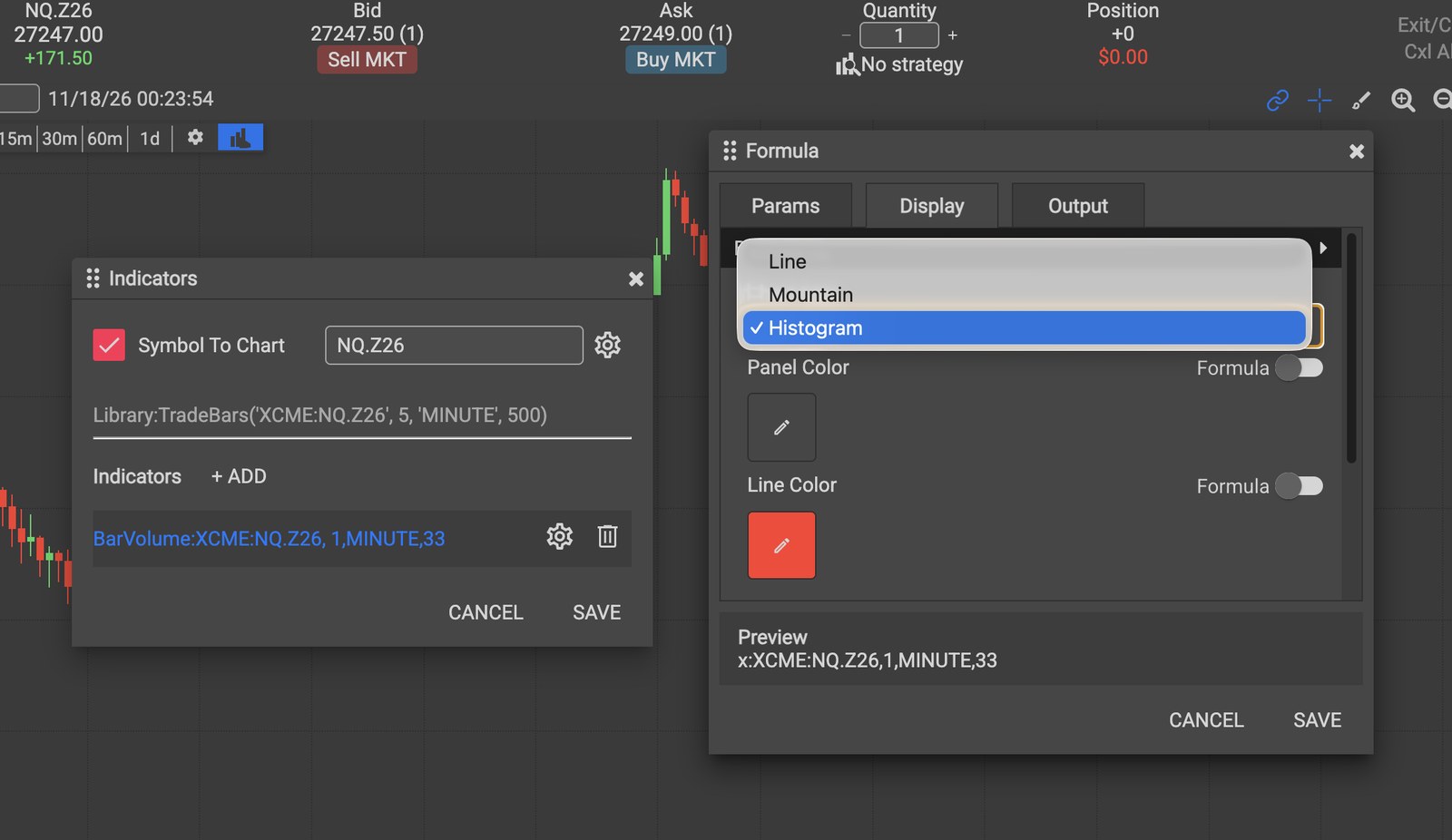
Open the Display tab and change the chart type from Line to Histogram. Screenshot of the Ironbeam platform. - Save. Click SAVE in the Indicators panel. BarVolume now appears as a volume histogram in a separate panel under the price chart.
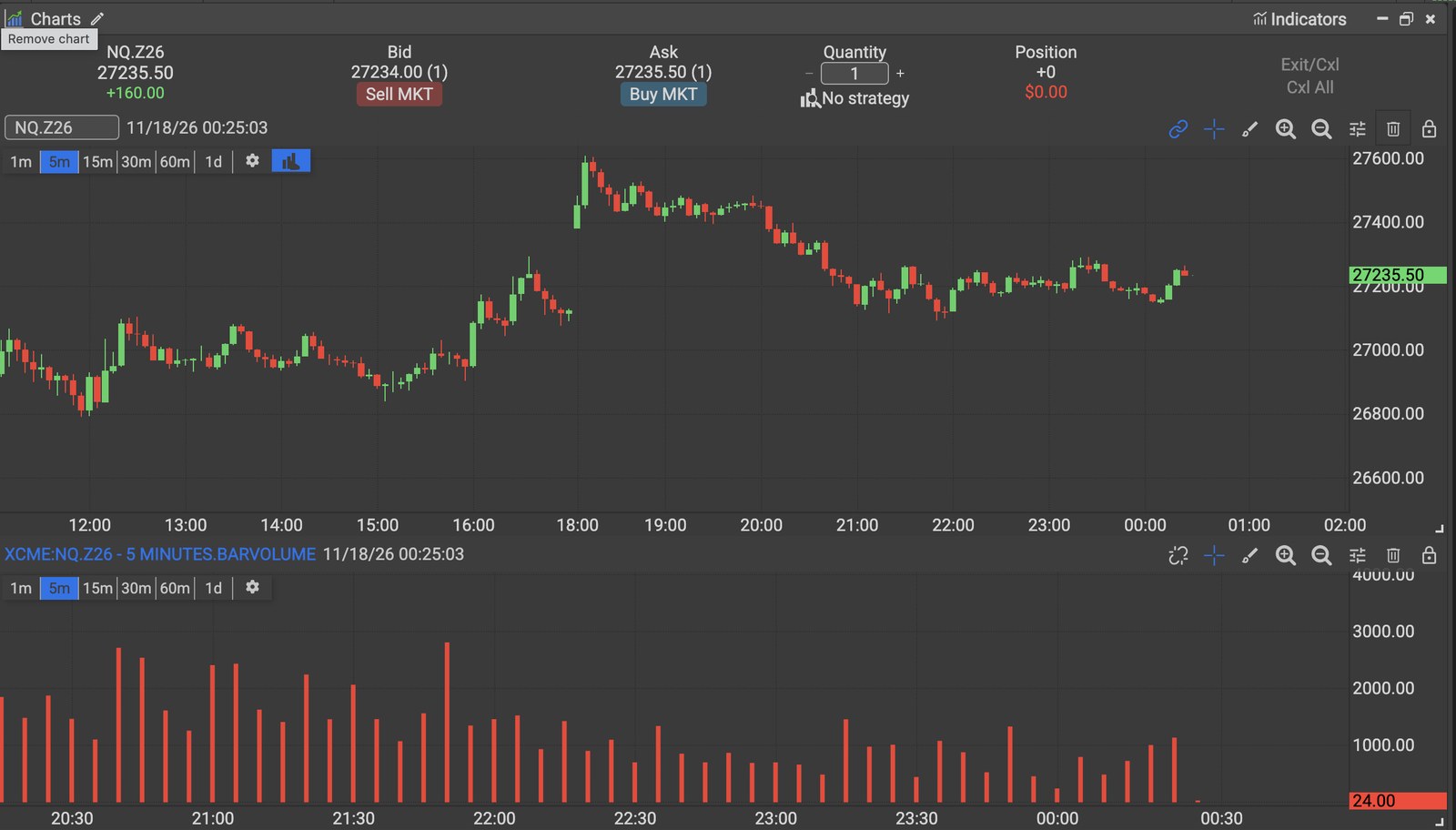
The result: BarVolume shown as a volume histogram in a separate panel under the price chart. Screenshot of the Ironbeam platform.
Which result should you choose?
Searching for volume returns several formulas. Choose BarVolume for the volume of each bar.
- BarVolume: the total traded volume of each bar for a symbol.
- VolumeBars: a different bar type. These are price bars that close after a fixed amount of volume trades, rather than after a fixed time. VolumeBars is not the volume histogram.
- PVO: the Percentage Volume Oscillator.
Why does BarVolume show as a line?
BarVolume can display as a Line, Mountain, or Histogram. If you see a line instead of volume bars, click the settings gear next to BarVolume, open the Display tab, and change the chart type to Histogram.
Where can you learn more about the platform?
See the Ironbeam Platform Walkthrough for an overview of charts, the Depth widget, and other widgets.
Frequently asked questions
What is the volume indicator called on the Ironbeam platform?
It is called BarVolume. It shows the total traded volume of each bar for a symbol.
How do I show BarVolume as volume bars?
Click the settings gear next to BarVolume in the Indicators panel, open the Display tab, change the chart type from Line to Histogram, and click SAVE.
Is VolumeBars the same as BarVolume?
No. VolumeBars is a bar type that closes after a fixed amount of volume trades. BarVolume is the volume of each bar.
Who can I contact if I need help?
Lincoln Park Financial customer service is available 24/7. Email customerservice@lpfutures.com or call 312 500 4730.
Need help with indicators?
Lincoln Park Financial customer service is available 24/7 to help you set up the Ironbeam platform.
Contact us Call 312 500 4730Sources (checked November 17, 2026)
- Ironbeam platform screenshots taken by Lincoln Park Financial, November 18, 2026
- Ironbeam User Forum: Crosshair across multiple charts (adding indicators)
- Ironbeam User Forum: Volume bars and candles (bar volume indicator)
- Ironbeam: Professional Futures Trading Platform
Trading futures involves substantial risk of loss and is not suitable for all investors. Past performance is not indicative of future results.