
Ironbeam Platform Walkthrough
Last updated November 17, 2026
The Ironbeam platform runs on Windows and Mac desktops, in a web browser, and on iPhone, iPad, and Android. Lincoln Park Financial clients log in, build a workspace from widgets such as Quotes, Charts, Depth, Order Book, and Account Detail, and save it as a named layout for the next session.
This walkthrough gives Lincoln Park Financial clients an overview of the Ironbeam platform: where to get it, how to log in, how the workspace is organized, and where to find charts, market depth, Quote Speed, and your filled orders. Ironbeam provides the platform. Lincoln Park Financial customer service is available 24/7 if you need help along the way.
What is the Ironbeam platform?
The Ironbeam platform is the trading platform provided by Ironbeam for futures and options on futures. Ironbeam lists Windows, Mac, iPhone, iPad, Android, and any up to date web browser as compatible. Ironbeam states that the same functions, including your saved workspaces, are available across devices.
- Desktop: downloadable software for Windows and Mac. Ironbeam recommends the desktop software whenever possible.
- Web: trade from a web browser at trade.ironbeam.com with no download.
- Mobile: the Ironbeam app for iPhone in the App Store and for Android in Google Play.
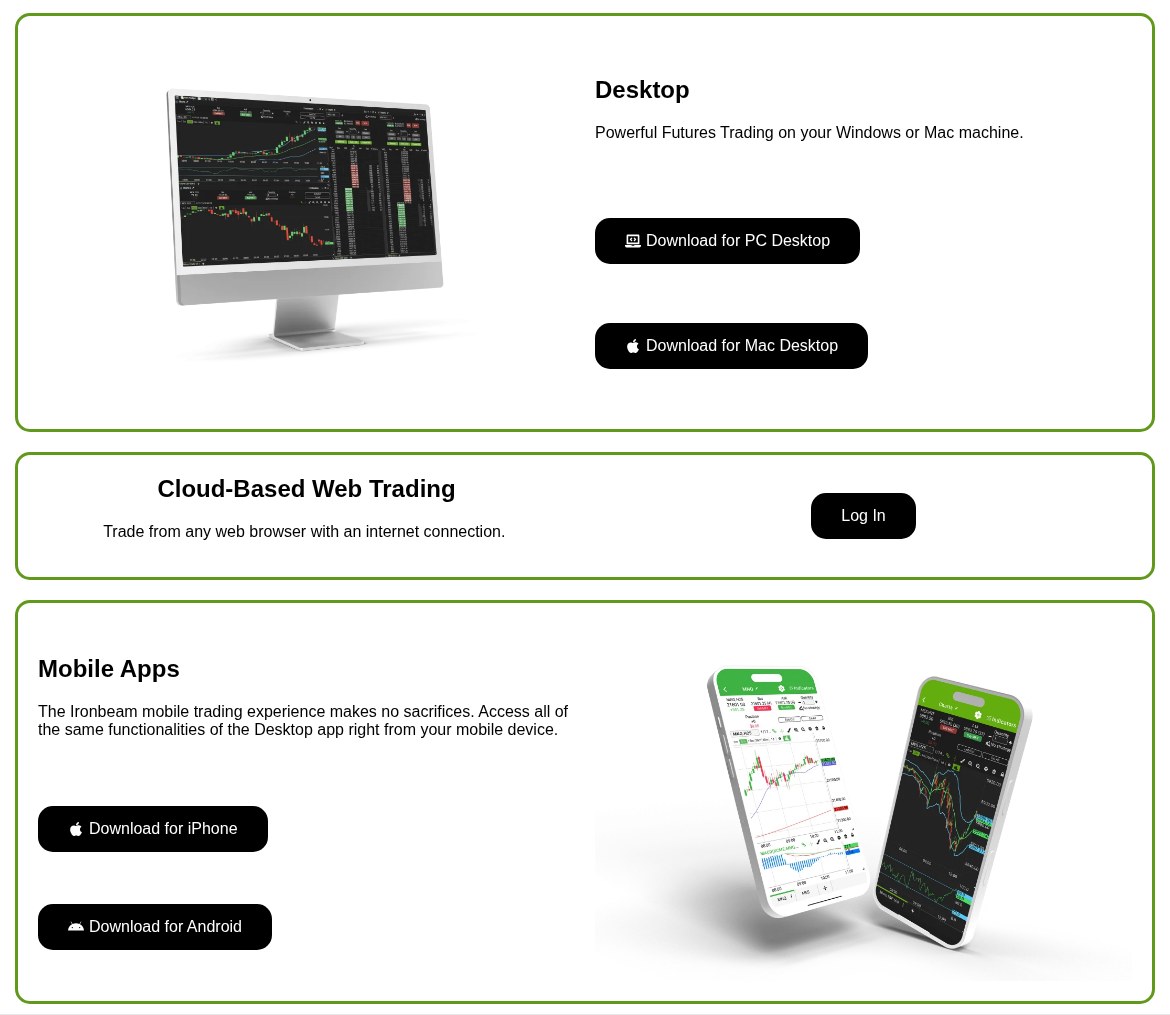
For step by step download instructions, see How to Download the Ironbeam Desktop Platform for Mac and Windows.
How do you get started?
- Enable the platform on your account. Platforms and market data are enabled after your account is funded. See How to Enable Platforms and Market Data at Ironbeam.
- Download or open the platform. Use the desktop software, the web platform, or the mobile app.
- Log in. Sign in with your Ironbeam platform credentials.
- Activate market data. Subscribe to the market data you need inside the platform. See How to Activate Market Data on the Ironbeam Platform (Level 8).
How is the platform laid out?
The Ironbeam platform is built from widgets that you add, resize, and arrange into a workspace. Ironbeam suggests starting with a blank workspace so you learn where each widget lives, and then saving it as a named layout so it loads the same way at your next login. You can save more than one workspace, for example one for day trading and one for monitoring positions.
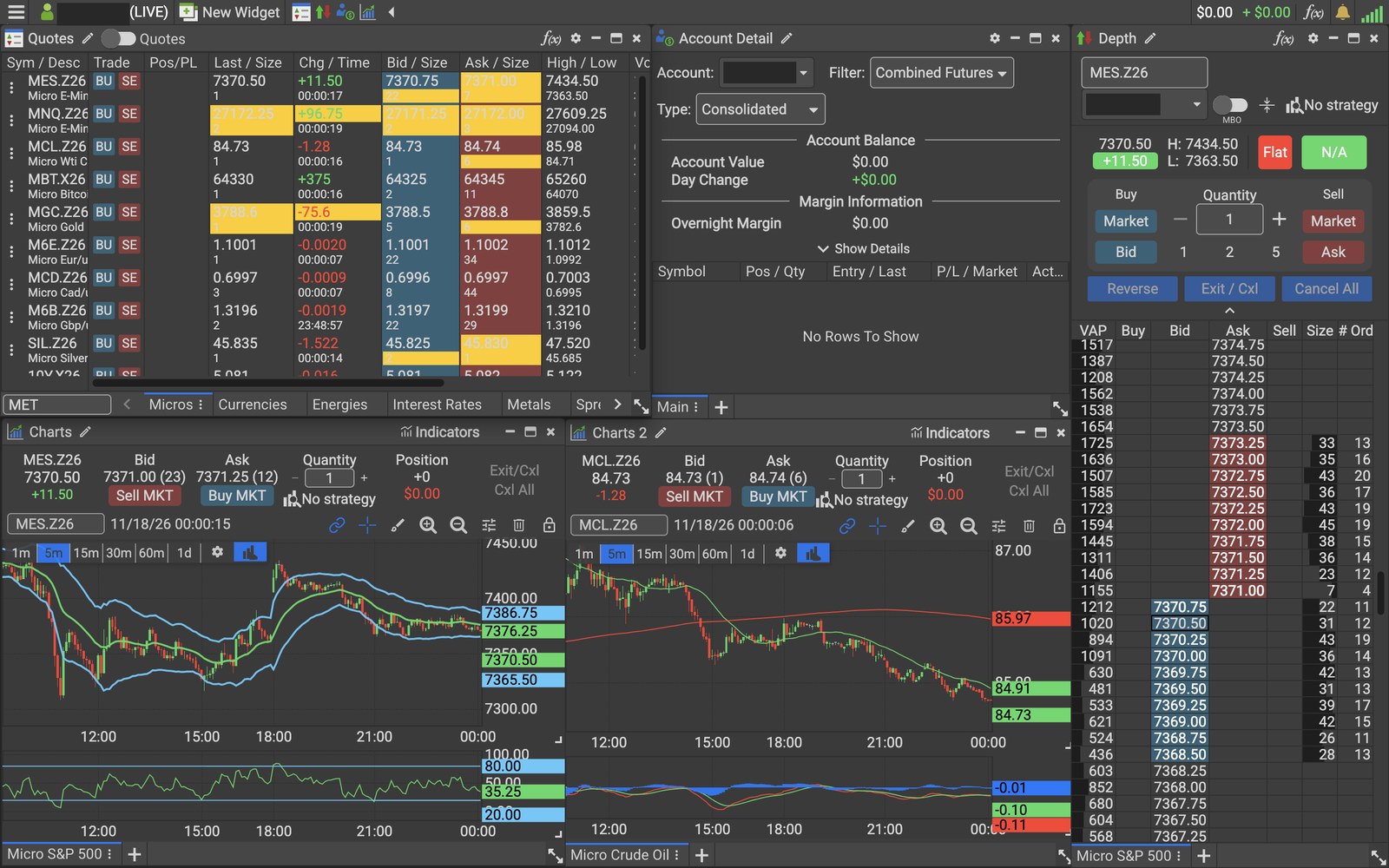
Common widgets include:
- Quotes: your quote board for the contracts you watch, with data such as last price, change, bid, ask, high, low, and volume.
- Charts: price charts with indicators and chart trading.
- Depth: the depth of market (DOM) ladder, where you can see bids and offers and place orders.
- Order Book: your working orders, and your filled orders when you set the status to Complete.
- Account Detail: account value, margin, positions, and balances in real time.
The platform also offers light and dark themes. Choose the one that is most comfortable for your trading hours.
How do charts and indicators work?
Ironbeam states that its charting comes with more than 300 built in indicators and the ability to create your own. You can trade directly from the chart on any device. To add an indicator, click Indicators at the top right of a chart, click + ADD, and search for the formula you want in the Formula search box.
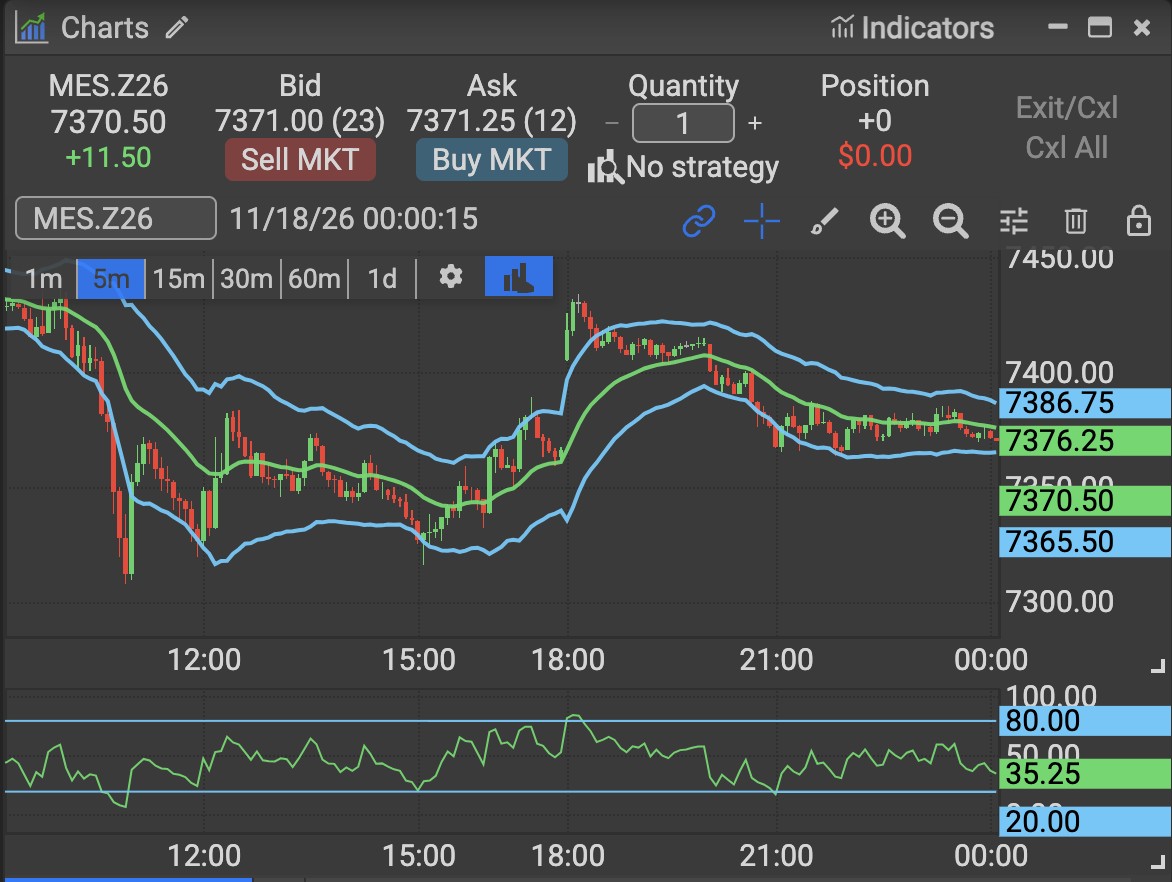
For a step by step example, see How to Add a Volume Indicator on the Ironbeam Platform.
How does the Depth widget work?
The Depth widget is the Ironbeam DOM. It shows bids and offers by price, and you can place orders by clicking price levels on the ladder. Standard Level 2 data shows the nearest 10 price levels on each side of the market. The MBO toggle near the top of the Depth widget switches to market by order data, which shows the number of orders and their sizes at every price level on CME Group futures symbols. MBO is included with Level II market data, so no additional subscription is required.
For details, see How to See More Than 10 DOM Levels on the Ironbeam Platform.
What is Quote Speed?
The Quote Speed slider controls how quickly quotes update on your screen. To find it, click the menu icon at the top left, click Settings, and open the General tab, where Quote Speed is listed. Drag the slider toward Slower or Faster, then click SAVE. Quote Speed changes only the display of quotes and does not affect order execution or fills. For more, see What Does the Quote Speed Slider Do on the Ironbeam Platform?
How do I see my filled orders?
You can see your filled orders in the Order Book widget.
- Click New Widget. Click New Widget in the bar at the top of the platform.
- Choose Order Book. In the list of widgets, click Order Book. The Order Book widget opens in your workspace.
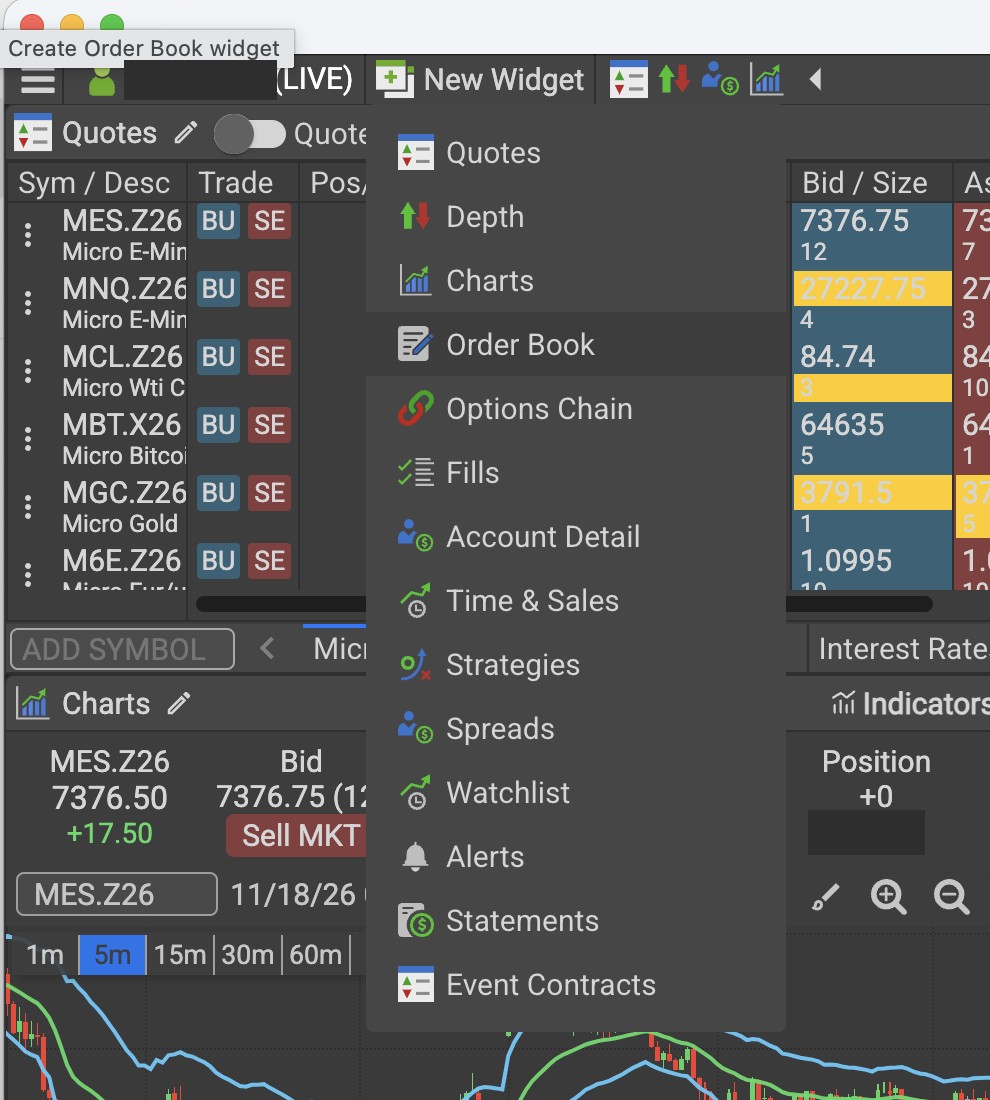
Click New Widget at the top of the platform, then choose Order Book. Screenshot of the Ironbeam platform. Account number hidden. - Open the status dropdown. In the Order Book, open the status dropdown next to the account selector. By default it shows Working orders.
- Choose Complete. Select Complete to see your filled orders. Select Working to return to your open orders, or Show All Statuses to see both.
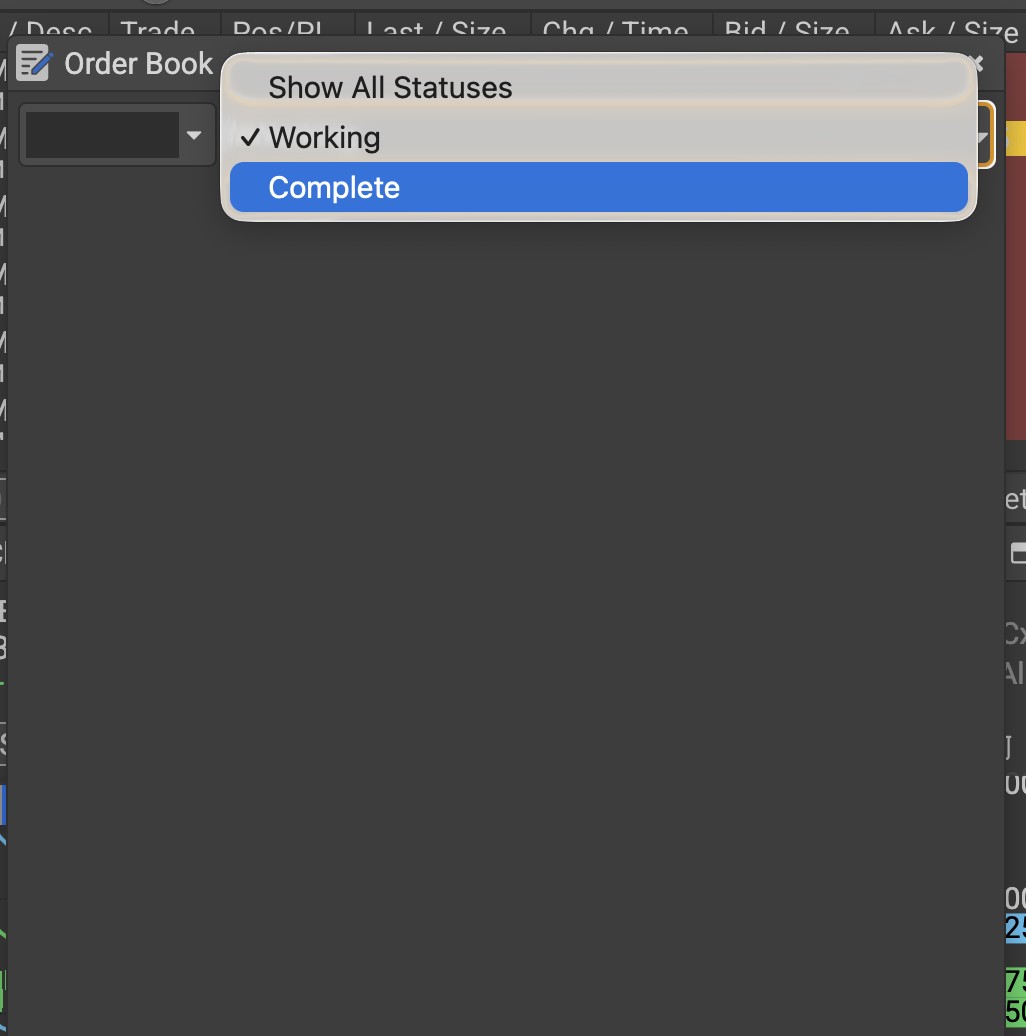
In the Order Book, open the status dropdown and choose Complete to see your filled orders. Screenshot of the Ironbeam platform. Account number hidden.
Ironbeam guides
- Ironbeam Platform Walkthrough
- How to Download the Ironbeam Desktop Platform for Mac and Windows
- How to Add a Volume Indicator on the Ironbeam Platform
- How to See More Than 10 DOM Levels on the Ironbeam Platform
- What Does the Quote Speed Slider Do on the Ironbeam Platform?
- How to Enable Platforms and Market Data at Ironbeam
- How to Activate Market Data on the Ironbeam Platform (Level 8)
Frequently asked questions
Does the Ironbeam platform run on Mac?
Yes. Ironbeam offers a desktop download for Mac and for Windows on the same page, ironbeam.com/app.
Can I use the Ironbeam platform on my phone?
Yes. The Ironbeam app is available for iPhone in the App Store and for Android in Google Play.
Will my workspace carry over between desktop and web?
Ironbeam states that saved workspace settings are tied to your Ironbeam account, so your configurations are available across supported platforms.
How do I see my filled orders?
Click New Widget at the top of the platform, choose Order Book, and set the status dropdown to Complete.
Who can I contact if I need help?
Lincoln Park Financial customer service is available 24/7. Email customerservice@lpfutures.com or call 312 500 4730.
Need help with the Ironbeam platform?
Lincoln Park Financial customer service is available 24/7 to help you set up the Ironbeam platform.
Contact us Call 312 500 4730Sources (checked November 17, 2026)
- Ironbeam Knowledge Base: Which operating systems is Ironbeam’s platform compatible with?
- Ironbeam Knowledge Base: Which version of the Ironbeam platform is best?
- Ironbeam download page (ironbeam.com/app)
- Ironbeam: Set Up Your First Ironbeam Trading Workspace
- Ironbeam: Professional Futures Trading Platform
- Ironbeam Platform Update: Market by Order (MBO) Data Now Available
- Ironbeam: MBO vs. MBP Market Data
- Ironbeam App: Platform Tour
- Ironbeam platform screenshots taken by Lincoln Park Financial, November 18, 2026
Trading futures involves substantial risk of loss and is not suitable for all investors. Past performance is not indicative of future results.