
How to See More Than 10 DOM Levels on the Ironbeam Platform
Last updated November 17, 2026
Standard Level 2 data shows the nearest 10 price levels on each side. On the Ironbeam platform, click the MBO toggle near the top of the Depth widget to switch to market by order data, which shows orders and contracts at every price level on CME Group futures symbols.
Standard Level 2 market data shows the nearest 10 price levels on each side of the market. To see beyond those 10 levels on the Ironbeam platform, turn on MBO (market by order) in the Depth widget. Ironbeam explains that MBO gives a breakdown of working orders and contracts at every individual price, not only the nearest 10 levels.
How do you turn on MBO?
- Open the Depth widget. Add a Depth widget for your contract, or use one that is already in your workspace.
- Find the MBO toggle. It sits near the top of the Depth widget, next to the account selector. By default MBO is off, and the ladder shows the standard aggregated depth.
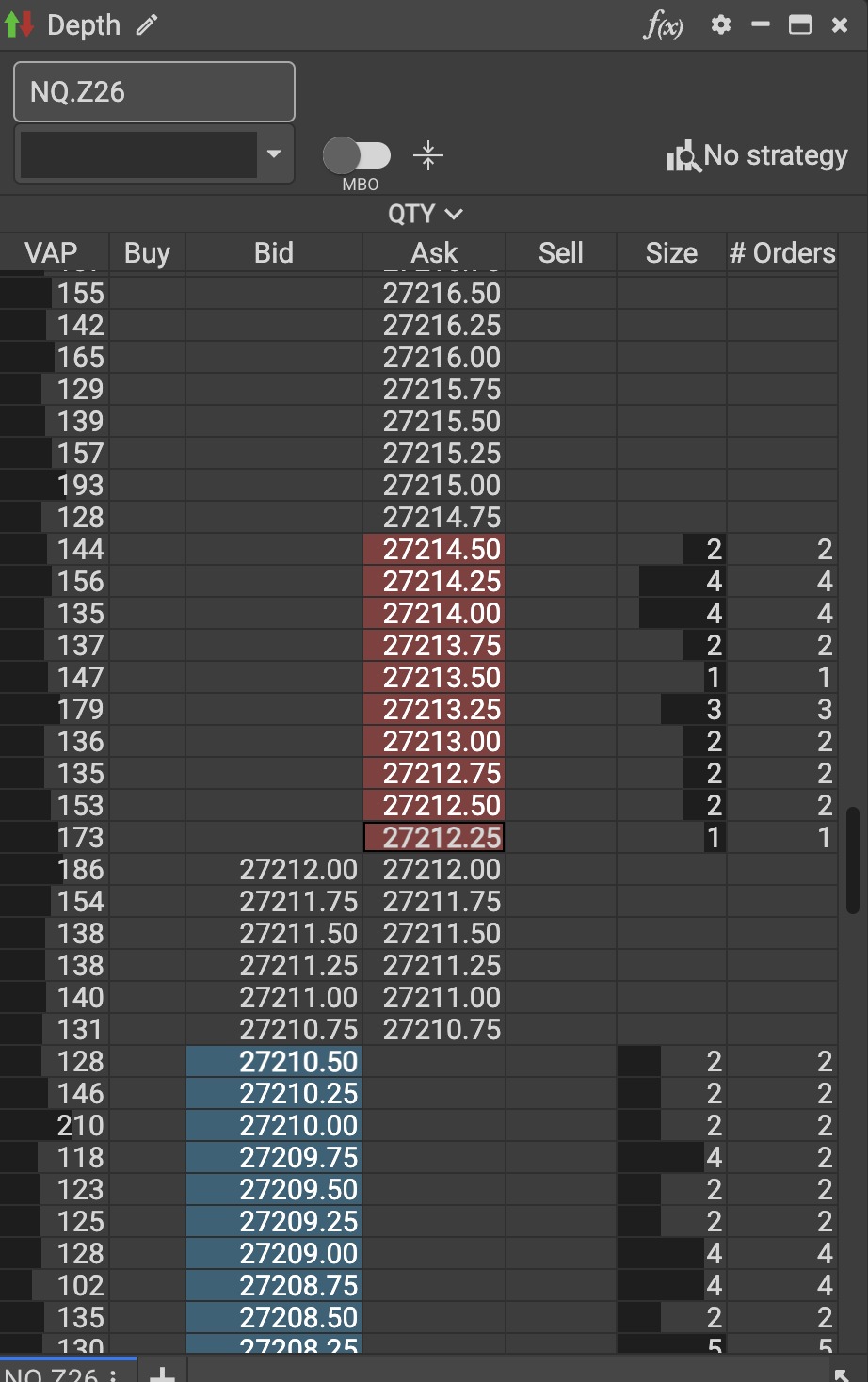
The Depth widget with MBO off shows the standard aggregated depth, with Size and # Orders columns for each price level. Screenshot of the Ironbeam platform. Account number hidden. - Turn MBO on. Click the MBO toggle to switch from standard Level 2 to MBO data. Click it again to switch back.
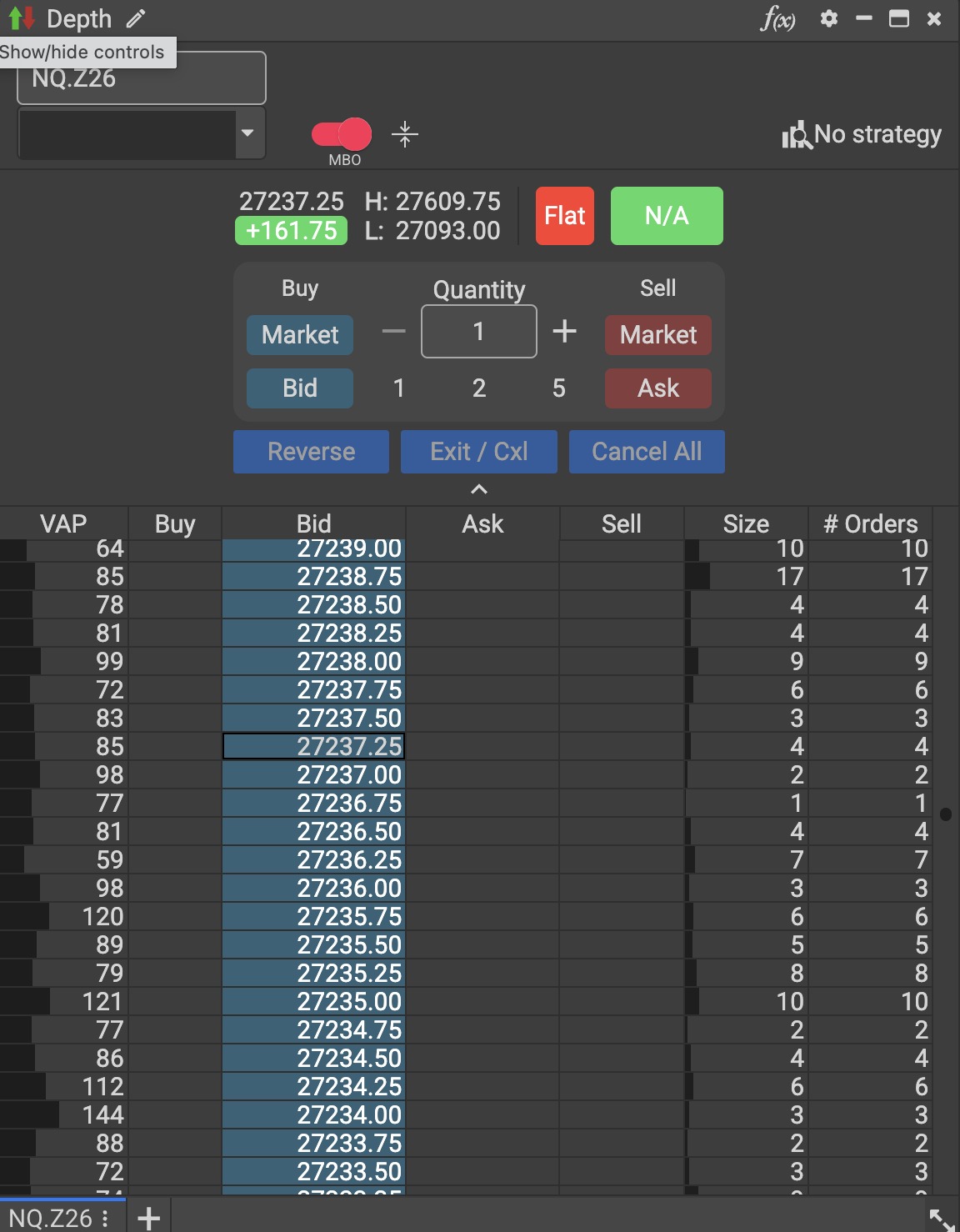
The Depth widget with MBO turned on. The order controls are shown above the price ladder, which includes Size and # Orders columns. Screenshot of the Ironbeam platform. Account number hidden. - Read the ladder. With MBO on, you can see the number of contracts and the number of orders at each price level.
What does MBO show?
Market by price data shows the total size resting at each price. Market by order data shows the individual orders that make up that total. According to Ironbeam, with MBO you can:
- See the number of contracts at each price level.
- See how many orders are stacked at a given price.
- Place orders from the Depth widget and see your order reflected in the MBO data after you submit it.
Which contracts support MBO?
Ironbeam states that MBO is available on any CME Group futures symbol.
Do you need a separate subscription for MBO?
No. MBO is included with Level II market data. If you have Level II market data, you can turn on MBO in the Depth widget, and no additional subscription is required. To set up market data, see How to Activate Market Data on the Ironbeam Platform (Level 8). If you have questions about your market data, contact Lincoln Park Financial customer service.
For more about the platform, see the Ironbeam Platform Walkthrough.
Frequently asked questions
Why does my DOM only show 10 levels?
Standard Level 2 data includes the nearest 10 price levels on each side of the market. Turn on MBO in the Depth widget to see beyond those levels.
Where is the MBO toggle?
Near the top of the Depth widget, next to the account selector.
Which contracts support MBO?
Ironbeam states that MBO is available on any CME Group futures symbol.
Do I need a separate subscription for MBO?
No. MBO is included with Level II market data, so no additional subscription beyond Level II is required.
Who can I contact if I need help?
Lincoln Park Financial customer service is available 24/7. Email customerservice@lpfutures.com or call 312 500 4730.
Need help with the Depth widget?
Lincoln Park Financial customer service is available 24/7 to help you set up the Ironbeam platform.
Contact us Call 312 500 4730Sources (checked November 17, 2026)
- Ironbeam Platform Update: Market by Order (MBO) Data Now Available
- Ironbeam: MBO vs. MBP Market Data
- Ironbeam User Forum: Ironbeam Futures Platform Version 1.94.2 release notes
- Ironbeam User Forum: DOM Level 2 Visibility Limited to 10 Entries
- Ironbeam platform screenshots taken by Lincoln Park Financial, November 18, 2026
- How to Activate Market Data on the Ironbeam Platform (Level 8)
Trading futures involves substantial risk of loss and is not suitable for all investors. Past performance is not indicative of future results.