If you forgot your CQG password or need to reset it for security reasons, the process is straightforward. This guide walks you through each step to get back into your CQG Desktop, CQG QTrader, or CQG One account quickly.
How to Reset Your CQG Password
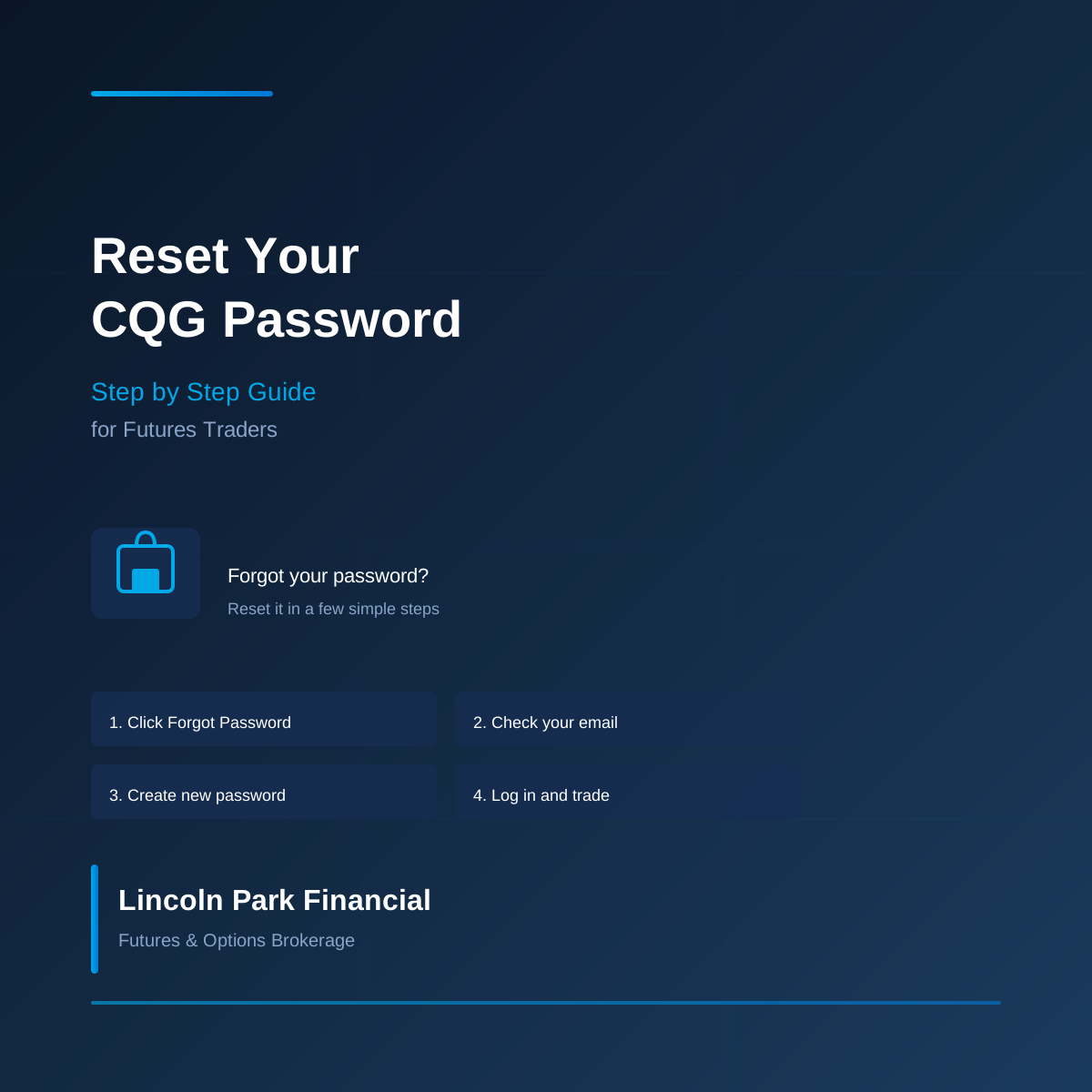
Follow these steps to reset your CQG password:
- Go to the CQG login page Here. Alternatively, open CQG Desktop, CQG QTrader, or CQG One and click on the login screen.
- Click “Forgot Password.” On the login screen, look for the “Forgot Password” link below the password field and click it.
- Enter your email address. Type the email address associated with your CQG account and click “Submit.”
- Check your email. CQG will send a password reset link to your registered email address. This email typically arrives within a few minutes.
- Click the reset link. Open the email and click the password reset link. This will open a browser page where you can create a new password.
- Create a new password. Enter your new password twice to confirm it. Make sure your new password meets CQG’s requirements (at least 8 characters, including letters and numbers).
- Log in with your new password. Return to the Third-Party Platform, CQG Desktop, CQG QTrader, or CQG One and log in using your email address and new password.
CQG Password Requirements
CQG passwords must meet the following requirements:
- At least 8 characters in length
- Include at least one uppercase letter
- Include at least one lowercase letter
- Include at least one number
- Cannot reuse your previous password
What to Do If You Do Not Receive the Reset Email
If you do not receive the password reset email within 10 minutes, check the following:
- Check your spam or junk folder. The email may have been filtered.
- Verify your email address. Make sure you entered the correct email associated with your CQG account.
- Contact Lincoln Park Financial. If you still do not receive the email, contact us and we can help coordinate with CQG support to reset your password manually.
How to Change Your CQG Password While Logged In
If you are already logged into CQG and want to change your password:
- Open CQG Desktop or CQG QTrader.
- Go to File > Setup > User Settings.
- Navigate to the Security or Account tab.
- Click Change Password.
- Enter your current password, then your new password twice.
- Click OK or Save to confirm.
Troubleshooting Common CQG Login Issues
If you are having trouble logging in even after resetting your password, try these steps:
- Clear your browser cache. If you are using CQG Web, clear your browser cache and cookies.
- Check your internet connection. CQG requires a stable internet connection to authenticate.
- Verify your CQG subscription is active. Contact us if you are unsure whether your CQG subscription is current.
- Try a different CQG platform. If CQG Desktop is not working, try logging into CQG QTrader or CQG One.
Why Trade Futures with CQG Through Lincoln Park Financial?
Lincoln Park Financial offers CQG as one of our primary trading platforms. When you open an account with us, you get:
- Competitive commission rates on all major futures contracts
- Low intraday margins on select contracts
- Full market access to CME, CBOT, NYMEX, COMEX, Eurex, and ICE
- Professional charting with CQG’s advanced analytics tools
- Reliable execution with institutional-grade data and order routing
Frequently Asked Questions
How do I reset my CQG password?
Go to the CQG login screen, click “Forgot Password,” enter your registered email address, and follow the link sent to your email to create a new password.
What are the CQG password requirements?
CQG passwords must be at least 8 characters long and include at least one uppercase letter, one lowercase letter, and one number. You cannot reuse your previous password.
What if I do not receive the CQG password reset email?
Check your spam folder, verify you entered the correct email address, and wait up to 10 minutes. If you still do not receive it, contact Lincoln Park Financial and we will help coordinate with CQG support.
Can I change my CQG password while logged in?
Yes. Go to File > Setup > User Settings, navigate to the Security or Account tab, click Change Password, and enter your current and new passwords.
Why can I not log into CQG after resetting my password?
Try clearing your browser cache, checking your internet connection, verifying your subscription is active, or trying a different CQG platform (Desktop, QTrader, or One). If issues persist, contact us.